Members and roles
Add people to a team, give them roles, handle invites, and understand members managed by SSO groups.
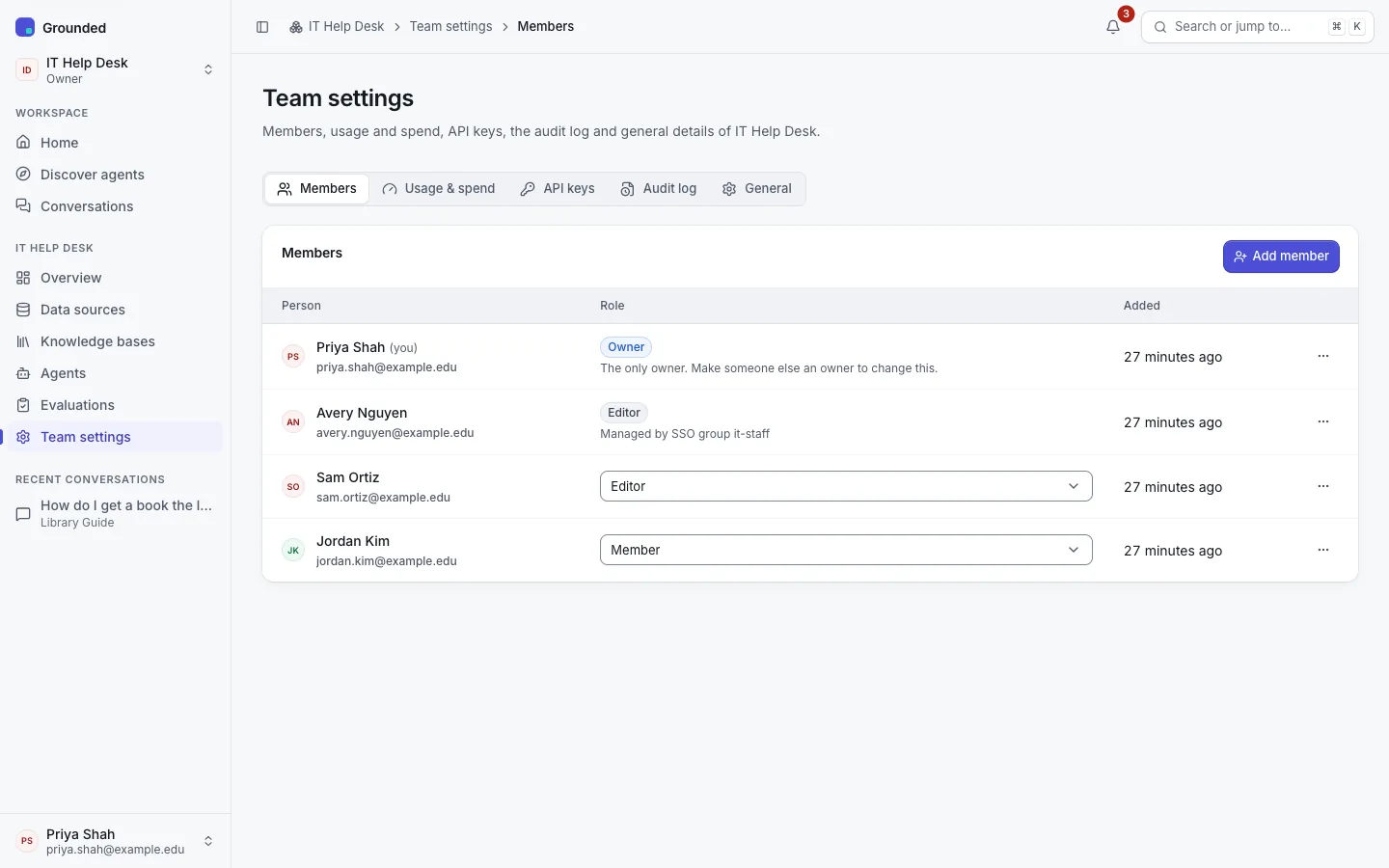
A team's members are managed under Team settings → Members. Team settings has five tabs: Members · Usage & spend · API keys · Audit log · General.
Roles
| Role | In short |
|---|---|
| Owner | Everything an admin can do, plus managing other owners. |
| Admin | Manages members (except owners), service keys, publishing to wider audiences, and sees the team's usage, spend and audit log. |
| Editor | Builds data sources, knowledge bases, agents and evaluations; publishes agents to the team. |
| Member | Uses the team's agents and searches its knowledge bases. |
The full table is in Concepts. In the app, a role's badge opens what it can and can't do.
Adding people
Add member takes a name or an email address:
- Someone who has signed in to Grounded before is added at once.
- A new email address gets an invite. The person joins when they first sign in with that verified email. Invites expire after 30 days, and the invite email is always sent (when the platform has email set up). Pending invites are listed on the Members tab, where you can revoke them.
Admins can add editors, members and other admins; only owners can add or change owners. Only platform admins create teams. If people need a new team, your install may link to a request form; otherwise ask a platform admin.
Changing and removing
- Change a member's role from their row's menu. They're notified (unless they turned that notification off).
- Removing a member revokes their personal API keys for this team.
- Anyone can Leave team from General. A team always keeps at least one owner, so the last owner has to make someone else an owner first.
Members managed by SSO groups
Your platform admins can map groups from the identity provider to roles in your team: for example, "people in the admissions-staff group are editors of this team". Grounded applies the rule each time someone signs in. See SSO groups.
- Such members show Managed by SSO group name.
- Owners and admins can't change their role or remove them by hand, and they can't leave the team themselves: the next sign-in would undo it. To take someone out, remove them from the group in the identity provider, or ask a platform admin to change the rule.
- Members you added by hand, by invite, or that a platform admin assigned as owner, are never changed by a rule, even if they're also in a mapped group.
- A rule never removes or lowers a team's last owner.
- Changes a rule makes appear in the team's audit log with the actor "System (group mapping: group → team)".
Group changes take effect at the person's next sign-in, so someone removed from a group keeps their membership until then.
General
The General tab shows the team's name, address and description, and Access and classification: the most sensitive level the team is approved for. Sources and agents can use any level up to it. Only platform admins change the approved level.