Data sources
Upload files or crawl websites, request crawl domains, read scanned documents with OCR, and keep sources tidy.
A data source holds documents. Grounded parses each document, splits it into passages and indexes them, so knowledge bases can search them. Team editors, admins and owners create and manage sources under Data sources in the team's sidebar.
When you create a source you choose three things that can't change later:
- Type: Upload files or Website.
- Embedding profile: how passages are embedded. A knowledge base can only combine sources that use the same profile.
- Name and classification can change later; the classification is covered below.
Uploading files
An upload source accepts PDF, Word (DOCX), PowerPoint (PPTX), HTML, Markdown and text files. With OCR on, it also accepts PNG, JPEG and TIFF images (see OCR).
- Choose Upload files on the source, or drop files on it. Each file becomes a document.
- The default size limit is 100 MB per file; your platform may set another.
- Uploading a file whose content is already in the source changes nothing. Uploading a new version of a file replaces the document.
- Tags you set on the source are added to every document, so agents and searches can filter on them.
- Files can also be uploaded through the API, with an API key that has the
ingestscope.
Grounded parses these formats itself. PDFs are read by PDFium (Chrome's PDF engine) running sandboxed in WebAssembly; headings are inferred and repeating page headers and footers removed. Word files keep their headings, lists and tables; PowerPoint files become one page per slide, with speaker notes. An install may also run Apache Tika as a fallback parser.
Crawling a website
A website source fetches public web pages with Grounded's own crawler. Choose what to index:
| Mode | What it does |
|---|---|
| Single page | Fetches one URL. |
| List of pages | Fetches up to 1,000 URLs you list, one per line. Links aren't followed. |
| Crawl a site | Starts from up to 20 start URLs and follows links on the same host, within a depth and a page limit. |
For a crawl you can set:
- Maximum depth: link hops from a start page, 0 to 10.
- Maximum pages: the crawl stops there. The platform sets the ceiling.
- Path prefixes: only follow paths that start with these, such as
/admissions/. - Exclude patterns: skip matching paths, such as
/calendar/**.*matches within a path segment,**across segments. - Include subdomains and Use sitemaps (also start from the pages listed in robots.txt and sitemap.xml).
Preview pages shows the URLs a crawl would start with, without storing anything. Use it to check the scope before you create the source.
The crawler always respects robots.txt, spaces its requests to each site, and doesn't run JavaScript: pages that only render their content in the browser come back empty. It fetches public sites only; sites behind a sign-in aren't supported. PDF and Word files it finds are parsed like uploads. Images are ignored.
Keeping a website current
- Sync schedule: manual, daily or weekly. A scheduled sync fetches the pages again and picks up changes. Sync now runs one at any time.
- Pages that are missing from a completed full crawl are removed from the source, and from search at once.
- A single page can be fetched again from its row on the Pages tab.
- The Crawls tab shows the 20 most recent crawls with their results.
Crawl domains
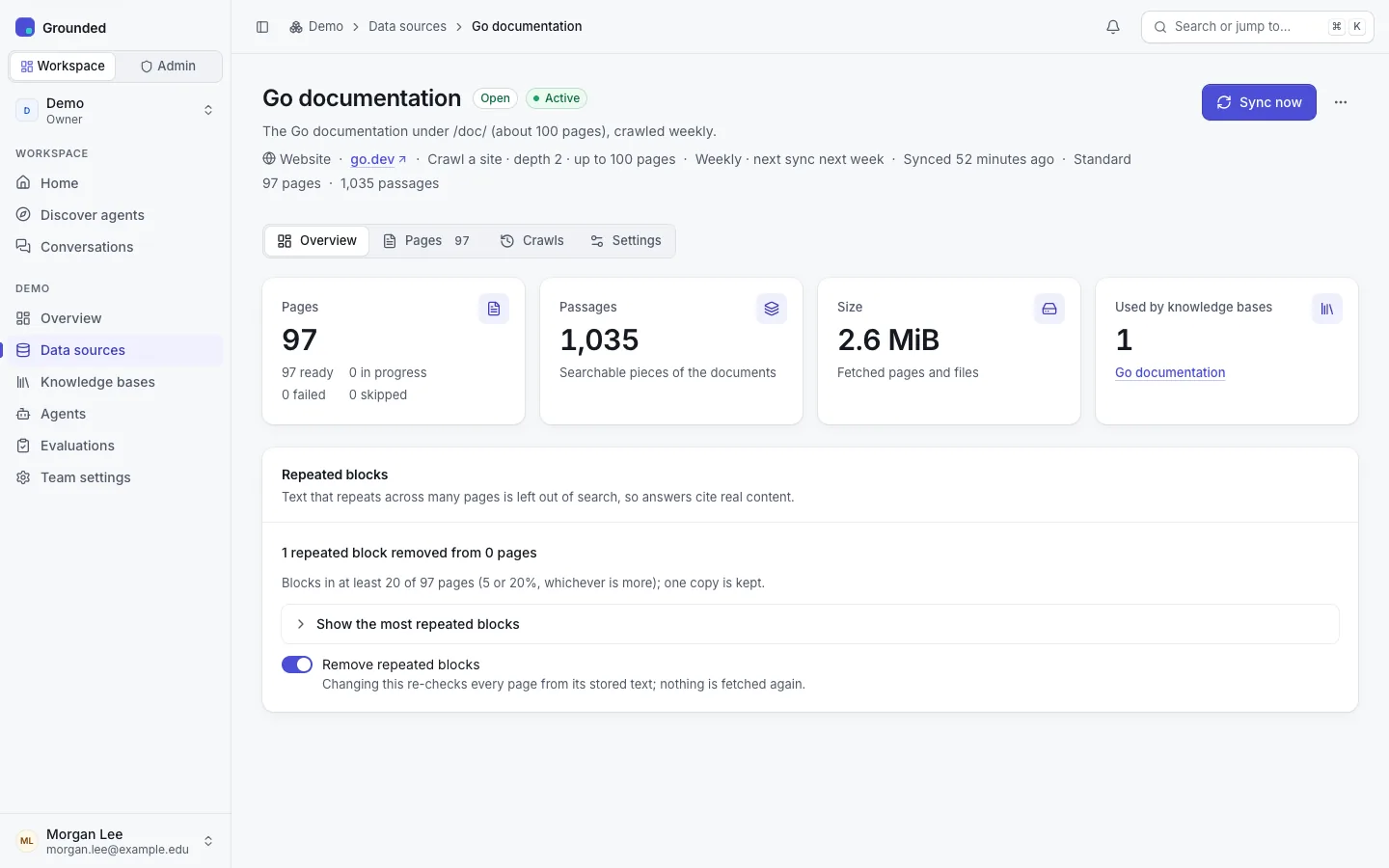
Websites can only be crawled if their host is on the platform's crawl allowlist. If a site you need isn't on it, request it:
- Open Data sources → Crawl domains (or follow the prompt when a new website source is refused).
- Request the domain, with a reason.
- A platform admin approves or declines it. You get a notification with the decision, and the tab shows each request's status.
Approved domains apply to your team only. Private, loopback and link-local addresses are always refused, whatever the allowlist says, so internal sites can't be crawled.
Repeated blocks
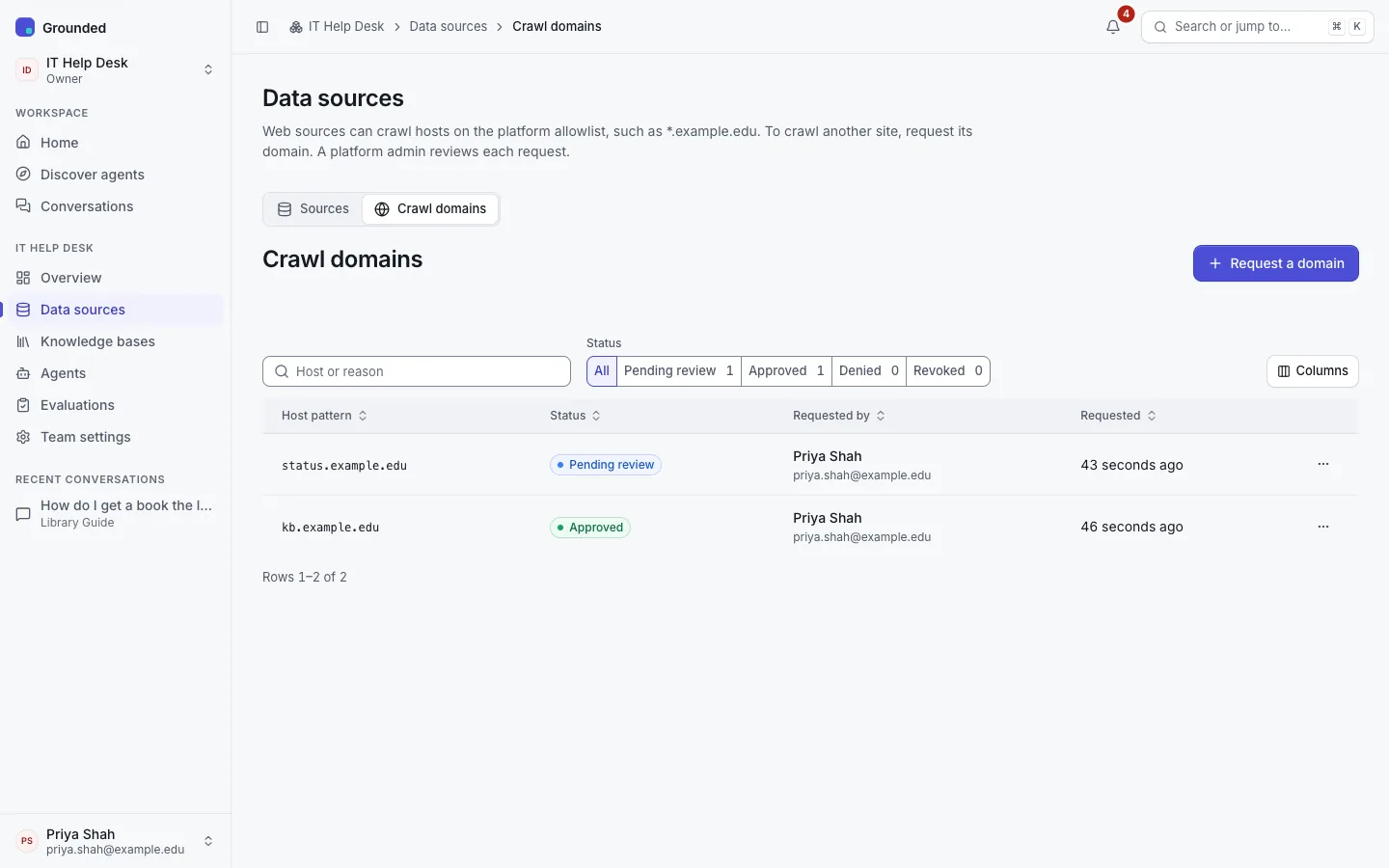
Websites repeat text on many pages: navigation, footers, "related content" cards. If those blocks were indexed, answers would cite them instead of real content. Grounded finds blocks that appear on many of a source's pages and leaves them out of search, keeping one copy so their information is still indexed once.
- It's on by default for website sources and off for uploads. Turn it on or off under Settings → Remove repeated blocks.
- The source's Overview shows how many repeated blocks were removed from how many pages, and Show the most repeated blocks lists them.
- Changing the setting re-checks every document from its stored text. Nothing is fetched again.
Scanned documents and OCR
Scanned PDF pages and images have no text layer. If your platform has turned OCR on, Grounded reads them:
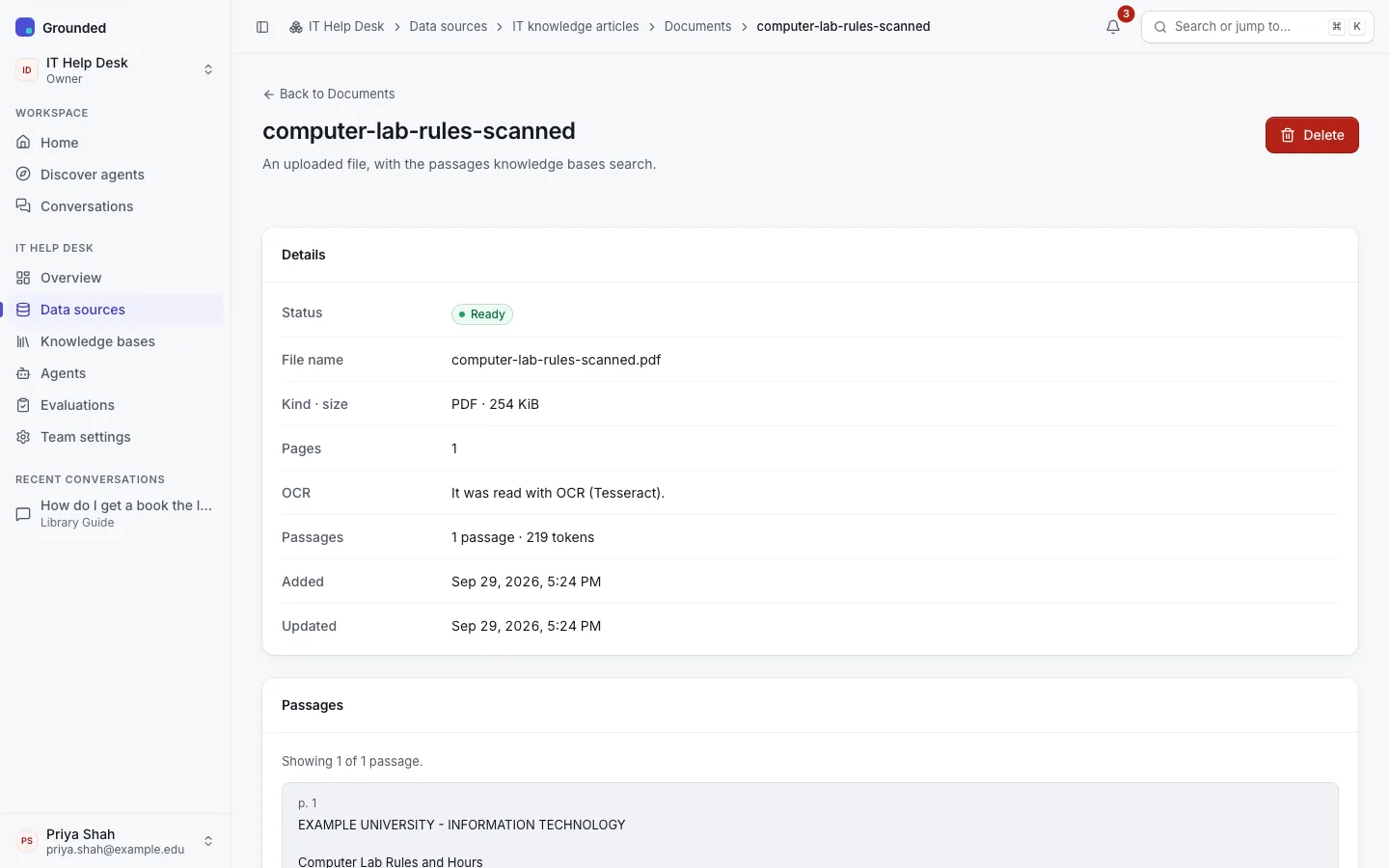
- Only pages without a text layer are read with OCR. Their text goes under the page's marker, so citations still name the page.
- PNG, JPEG and single-page TIFF uploads become one-page documents. Only the first page of a multi-page TIFF is read.
- A document's page says which pages were read with OCR, for example "Pages 3–7 were read with OCR (Tesseract)".
- Each source has its own switch, Settings → Read scanned pages with OCR, on by default. Turn it off where scans are noise. With it off, scanned pages are skipped and images can't be uploaded to the source.
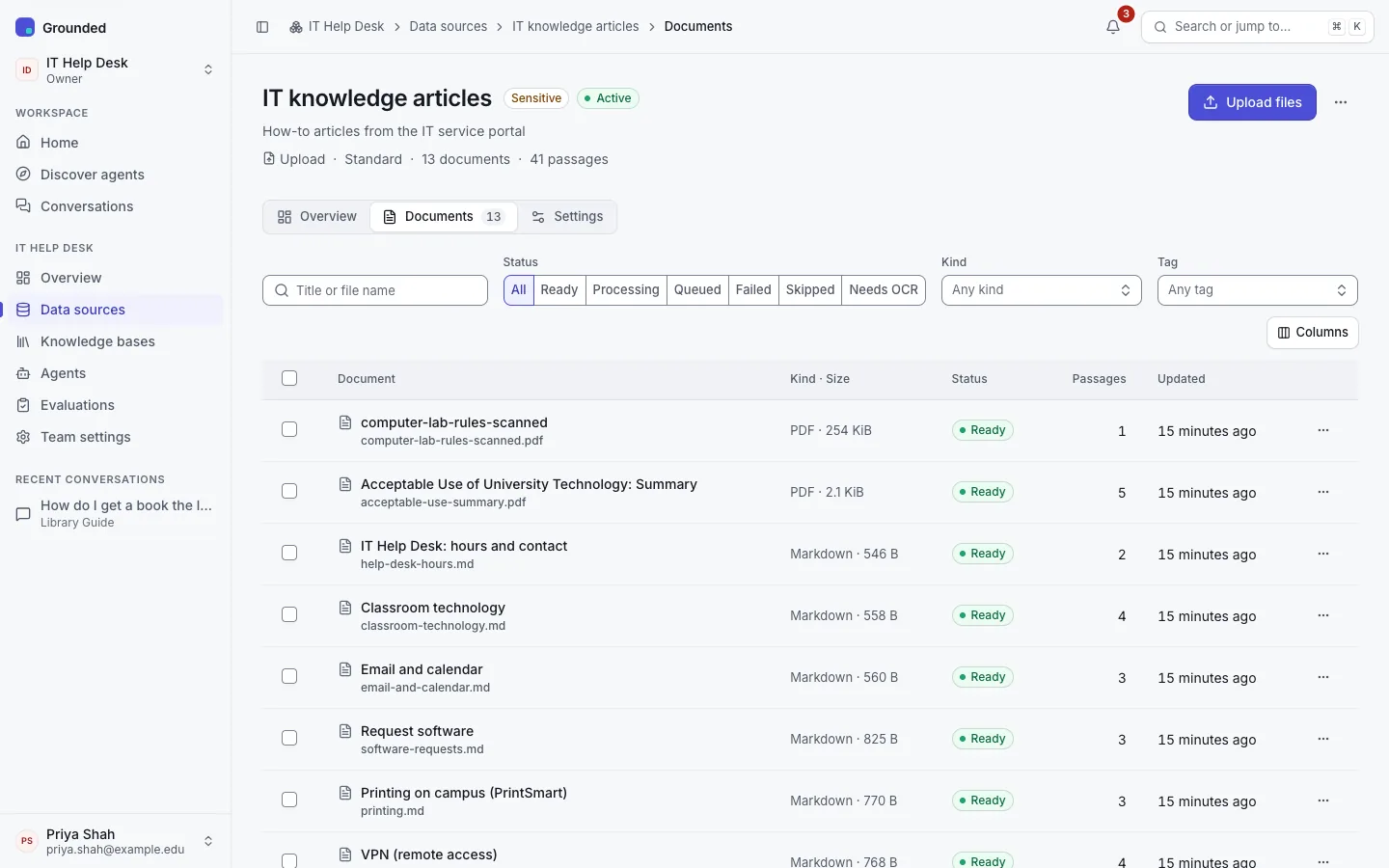
Documents skipped as scanned before OCR was on show as Needs OCR. On the source's Documents tab, filter Needs OCR, then Retry all that need OCR. The button is disabled, with the reason, while OCR is off for the source or the platform.
A PDF with only some pages lacking text is indexed with a warning that those pages were skipped. To read them once OCR is on, delete the document and upload it again.
OCR has limits: pages per document (200 by default) and OCR pages per day for the team (1,000 by default). A document that would pass the daily limit waits with "Waiting for the team's daily OCR page limit" and continues the next day (UTC), or as soon as the limit is raised.
Document states
A document moves through pending, fetching, parsing, chunking and embedding to ready. Others end as failed (with the error; you can retry), skipped (empty, or needs OCR) or deleted. A document can also wait: for the team's daily OCR or crawl page limit, for its monthly budget when the platform enforces budgets, or while the platform is in maintenance mode.
Classification
A source's classification says how sensitive its data is. It limits which models may embed it and which audiences its agents may have. A knowledge base takes the level of its most sensitive source, and an agent the level of its most sensitive knowledge base.
- Raising a classification is allowed for editors. It's refused, with the affected knowledge bases and agents named, if it would break a rule for any of them (for example an agent shared more widely than the new level allows). Nothing is ever unpublished silently.
- Lowering it needs a team admin or owner and a written reason. The team's owners are notified, and the change is audited.
- A source can't be classified above the team's approved level.
Other actions
- Pause source: it accepts no uploads, and documents waiting to be processed wait. Documents already indexed stay searchable. Resume it to continue.
- Delete source: its documents leave search at once. Their stored files are removed later, according to the platform's retention settings.
- Deleting a document works the same way.
Your team's limits cap storage, documents, sources, crawl pages per day and concurrent crawls. A crawl that reaches the daily page limit waits until the next day (UTC) or until the limit is raised; it doesn't fail. Owners and admins see the limits under Usage and spend.
Shared sources
Platform admins can create shared sources that any team can attach to its knowledge bases. They appear when you attach a source to a knowledge base. You can't change a shared source, and it doesn't count against your team's limits.