Knowledge bases
Combine data sources, test searches on the Try it tab, and tune how a knowledge base ranks passages.
A knowledge base searches one or more data sources together. Agents answer from knowledge bases, and API keys can search them directly. Editors, admins and owners manage them under Knowledge bases in the team's sidebar.
Creating one
- Knowledge bases → New knowledge base. Give it a name, a description and an embedding profile. The profile can't change later, and only sources that use it can be attached.
- Attach source on the Sources tab. You can attach your team's own sources and platform-shared sources, as long as each is classified within your team's approved level.
- Wait until the sources have ready documents, then try a search.
A knowledge base is as sensitive as its most sensitive source. That level decides which chat models its agents may use and which audiences they may have.
Try it
The Try it tab runs the same hybrid search agents use (vector and keyword together), without a chat model. Type a question and see the passages that come back, ranked, with their document, heading path and score.
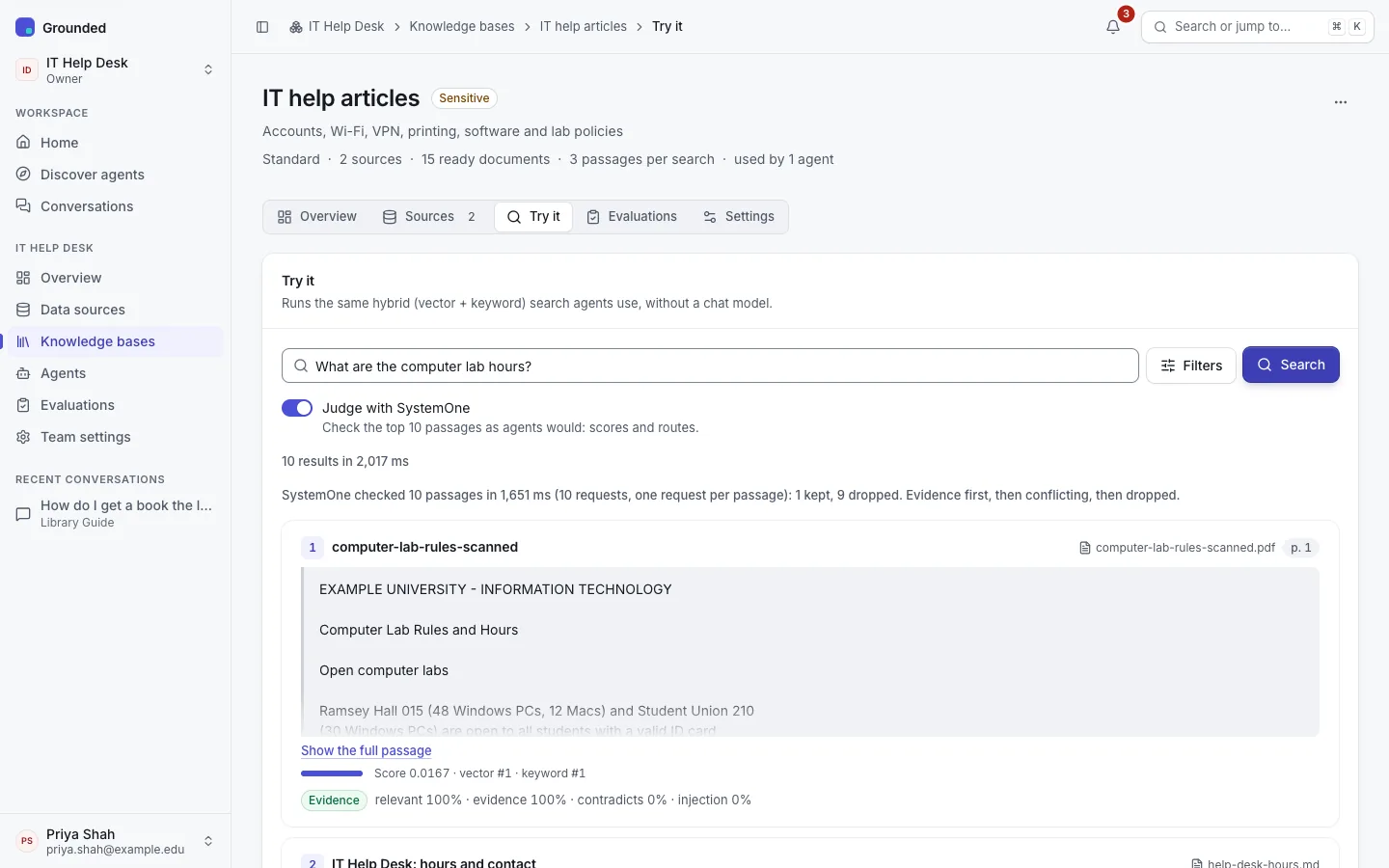
Under Filters and options you can narrow a search, the same filters agents can pin:
- Sources: only these data sources.
- Document kinds: PDF, Word, PowerPoint, web page, Markdown and so on.
- Tags: documents with any of these tags.
- URL prefixes: web pages whose address starts with one of these.
- Updated on or after and Updated before.
- Results per query (top-k): how many passages to return.
- Judge with SystemOne (when the platform has a SystemOne model): shows each passage's relevance scores and whether passage judging would keep it.
Use Try it to check a knowledge base before you point an agent at it, and whenever answers cite the wrong things. An evaluation result's Try this search opens this tab with the question filled in.
Retrieval settings
On Settings → Retrieval:
- Passages per search: how many passages a search returns, between 1 and 50. Agents use this number unless they override it (see Agents).
- Vector weight and Keyword weight (each 0–1): how the vector search and the keyword search are fused. Use the default takes the embedding profile's weights if it sets them, otherwise the platform's (vector 1, keyword 0.1).
The default suits most content. A knowledge base full of codes, names and policy numbers may do better with a higher keyword weight. Some strong embedding models do better with keyword fusion turned down to 0 or close to it; your platform admin may already have set that on the profile. Check changes on Try it, or better, with an evaluation set.
How search works
For each question, Grounded:
- Rewrites a follow-up into a question that stands alone (agents only, if turned on).
- Embeds the question with the knowledge base's profile.
- Runs a vector search and a keyword (Postgres full-text) search at the same time, both limited to the knowledge base's sources and any filters.
- Fuses the two rankings with the weights above and returns the top passages.
Small knowledge bases are searched exactly; very large ones use an approximate vector index. An agent that uses several knowledge bases searches each with its own profile and merges the results.
Changing the embedding profile
A knowledge base's profile can't be edited, but a platform admin can migrate it to a new profile in the background, for example to adopt a better embedding model. Search keeps working throughout, the switch happens in one step, and it can be switched back for a grace period. The knowledge base's page shows a migration while it runs. See Embedding profiles.
Other tabs
- Overview: the profile, sources, ready documents, passages per search, and the agents that use it.
- Evaluations: test sets for its search. See Evaluations.
- Settings: name, description, retrieval, and delete. Deleting a knowledge base keeps its data sources; published agents that use it must drop it first.
Searching through the API
POST /v1/teams/{team}/kbs/{kbId}/retrieve runs the same search for a signed-in session or an API key with the query scope. Each search counts against the team's query limits. Whether team API keys may call it directly for a given classification level is a platform setting. See the API reference.